How to Combine Multiple Videos into One on iPhone with Velvet
A simple, flexible way to bring your video clips together — and turn separate moments into one complete story.
Sometimes, one video clip isn't enough to tell the whole story.
Maybe you've recorded several moments from a trip, filmed different parts of a tutorial, or captured multiple takes for a social media video. Now you want to bring everything together into one polished video without switching between apps or moving your files to a computer.
With Velvet, you can easily combine multiple videos into one directly on your iPhone.
Import your clips, arrange them in the right order, make adjustments, add transitions, and export everything as a single video.
Whether you're creating Instagram Reels, TikTok videos, YouTube Shorts, or personal memories, Velvet gives you the tools to put your story together.
One Video, Multiple Moments
Creating a great video often means working with more than one recording.
You might have an introduction, a few different scenes, and a closing shot. Each clip tells part of the story, but they become more meaningful when connected.
Instead of sharing separate videos, you can combine them into a single sequence that feels natural from beginning to end.
Velvet makes it easy to turn individual clips into one continuous video.
You don't need a complicated editing setup. Everything happens within the same mobile editing workspace, where you can manage your scenes, control their timing, and preview the result.
Add Multiple Videos to Your Project
The first step is bringing your clips into Velvet.
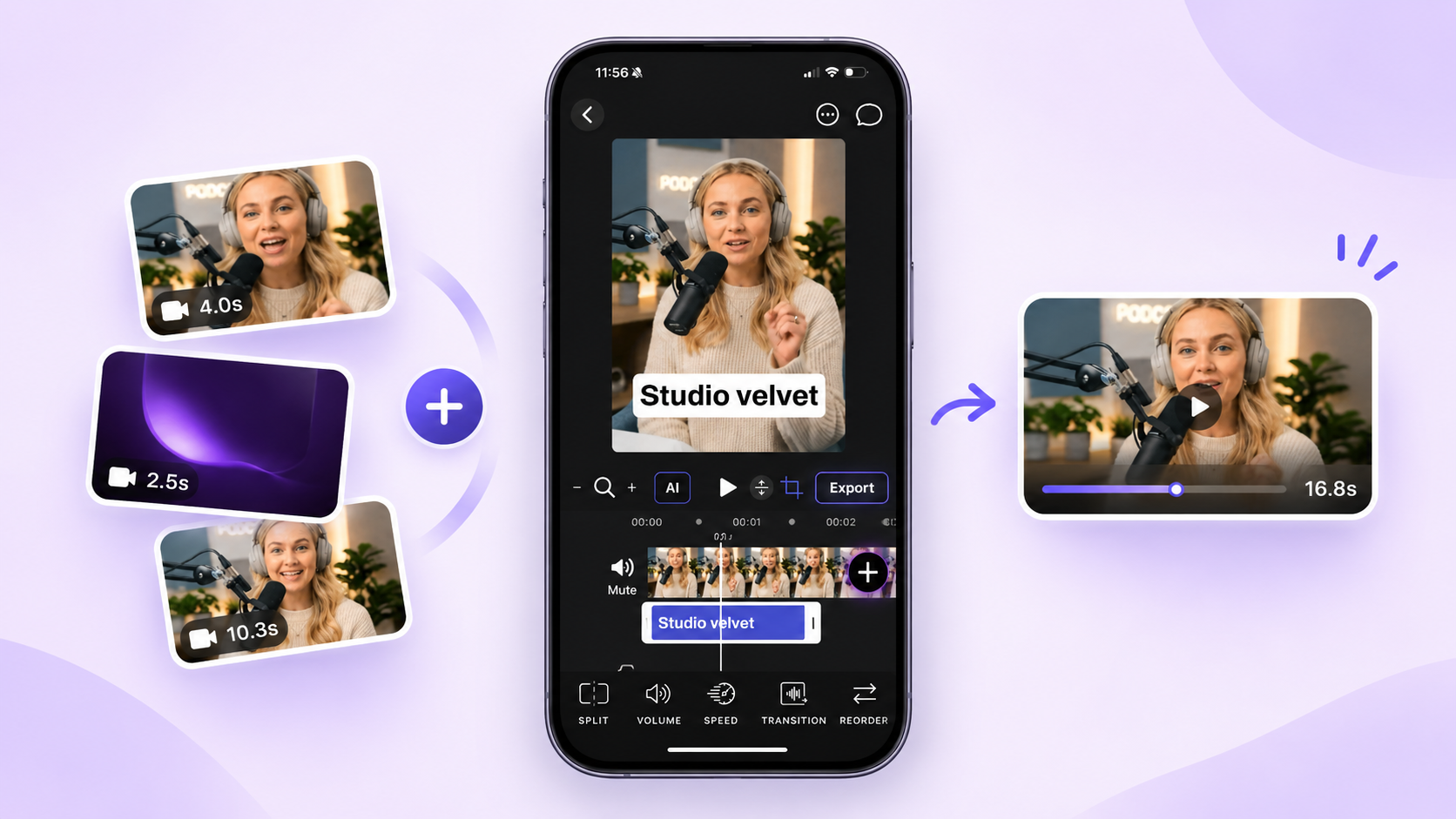
Start a new project and select the videos you want to combine. Velvet places them into your editing timeline, where each clip becomes part of your video sequence.
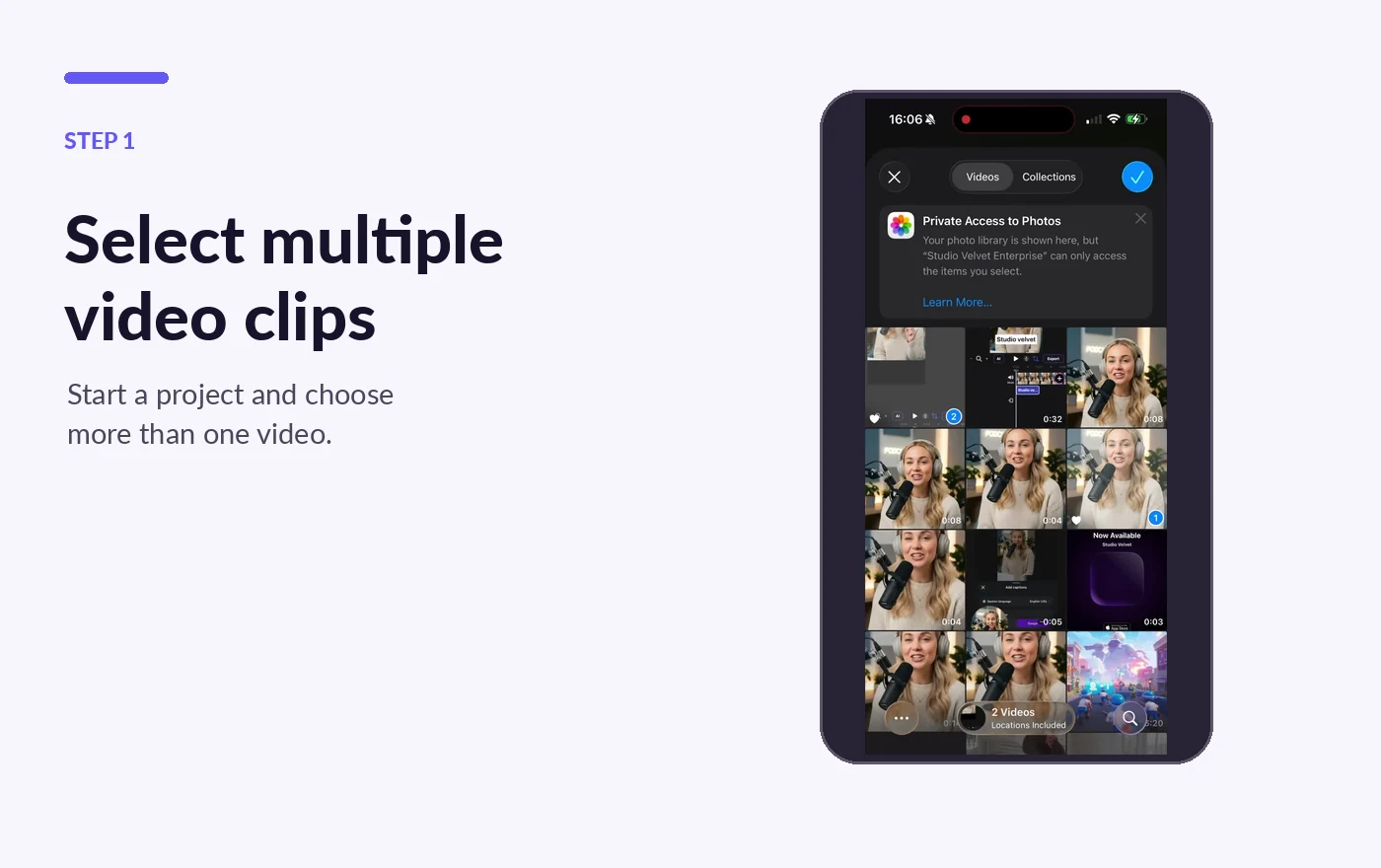
Already working on a project? You can add more video clips using the + button on the timeline.
Once your clips are added, you can see how they fit together and begin shaping your final video.
This is especially useful when you're creating content from multiple recordings, such as:
- Travel videos: Combine highlights from different locations into one memorable recap.
- Social media content: Bring together multiple short clips for Instagram Reels, TikTok, or YouTube Shorts.
- Tutorials: Connect individual steps into one easy-to-follow video.
- Product demonstrations: Show different features or perspectives in a single presentation.
- Personal memories: Turn everyday moments into a complete story.
Everything stays in one project, ready for editing.
Arrange Your Clips in the Perfect Order
Adding videos is just the beginning.
The order of your clips can make a big difference in how your story feels.
Maybe you want to start with an exciting moment, follow it with an explanation, and finish with a memorable closing shot.
With Velvet's Reorder feature, you can change the sequence of your scenes without having to start over.
Here's how it works:
Step 1: Open your project.
Open your video project in Velvet.
Step 2: Tap Reorder.
Select a scene and tap Reorder from the editing controls.
Step 3: Hold a scene.
In the Reorder Scenes view, press and hold a scene.
Step 4: Drag it into place.
Drag it to the position you want.
Step 5: Confirm.
Tap Done to confirm the new order.
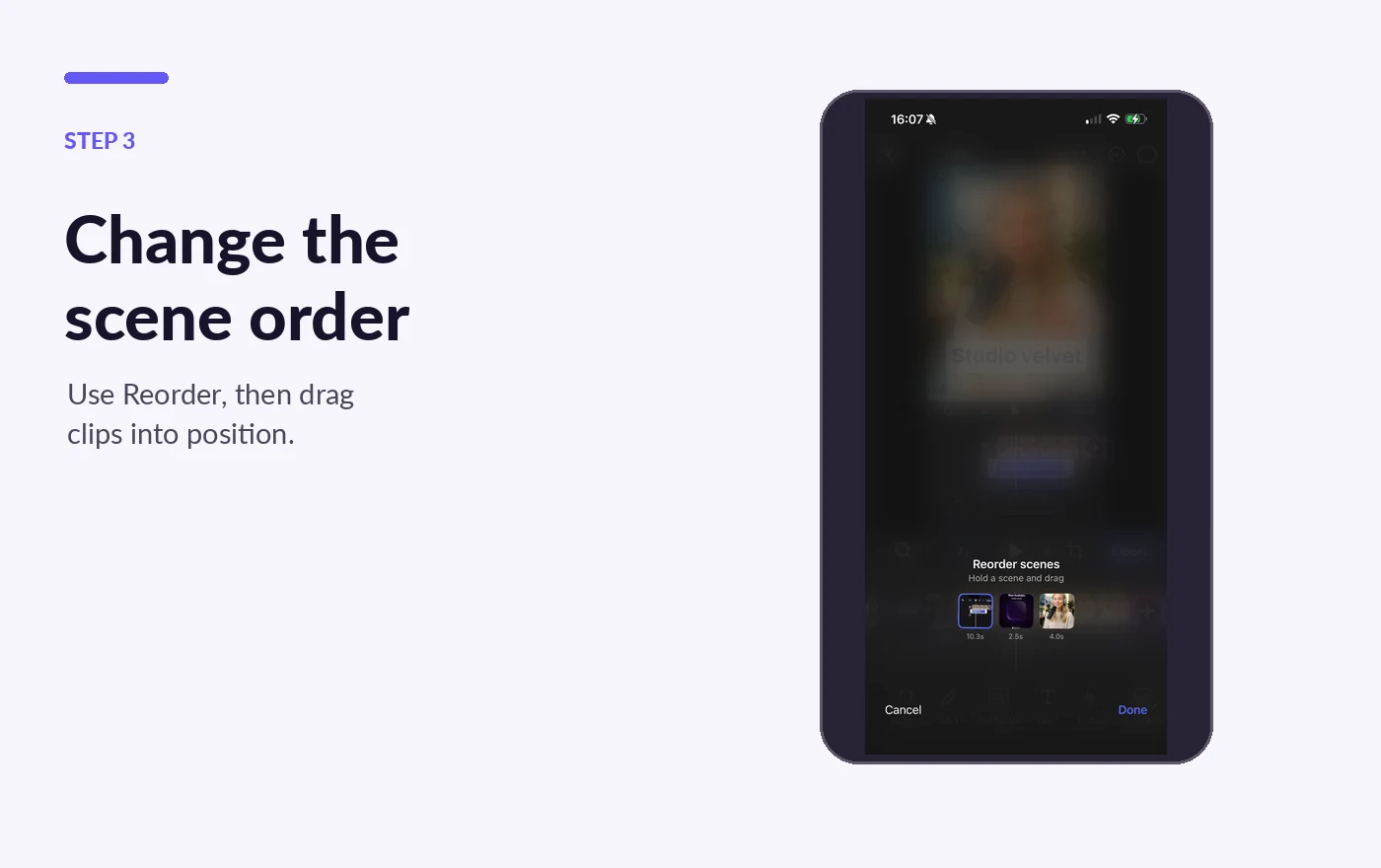
Your video sequence is updated, allowing you to continue editing with the clips arranged exactly as you want them.
No need to delete and re-import videos just to change their order.
A well-organized video timeline makes it easier to tell your story the way you imagined it.
Fine-Tune Each Clip Before Combining
Combining videos isn't just about placing them next to each other.
Sometimes you need to remove unnecessary moments, adjust timing, or make each clip flow more naturally into the next.
Velvet provides editing controls that let you refine your individual scenes before exporting the final result.
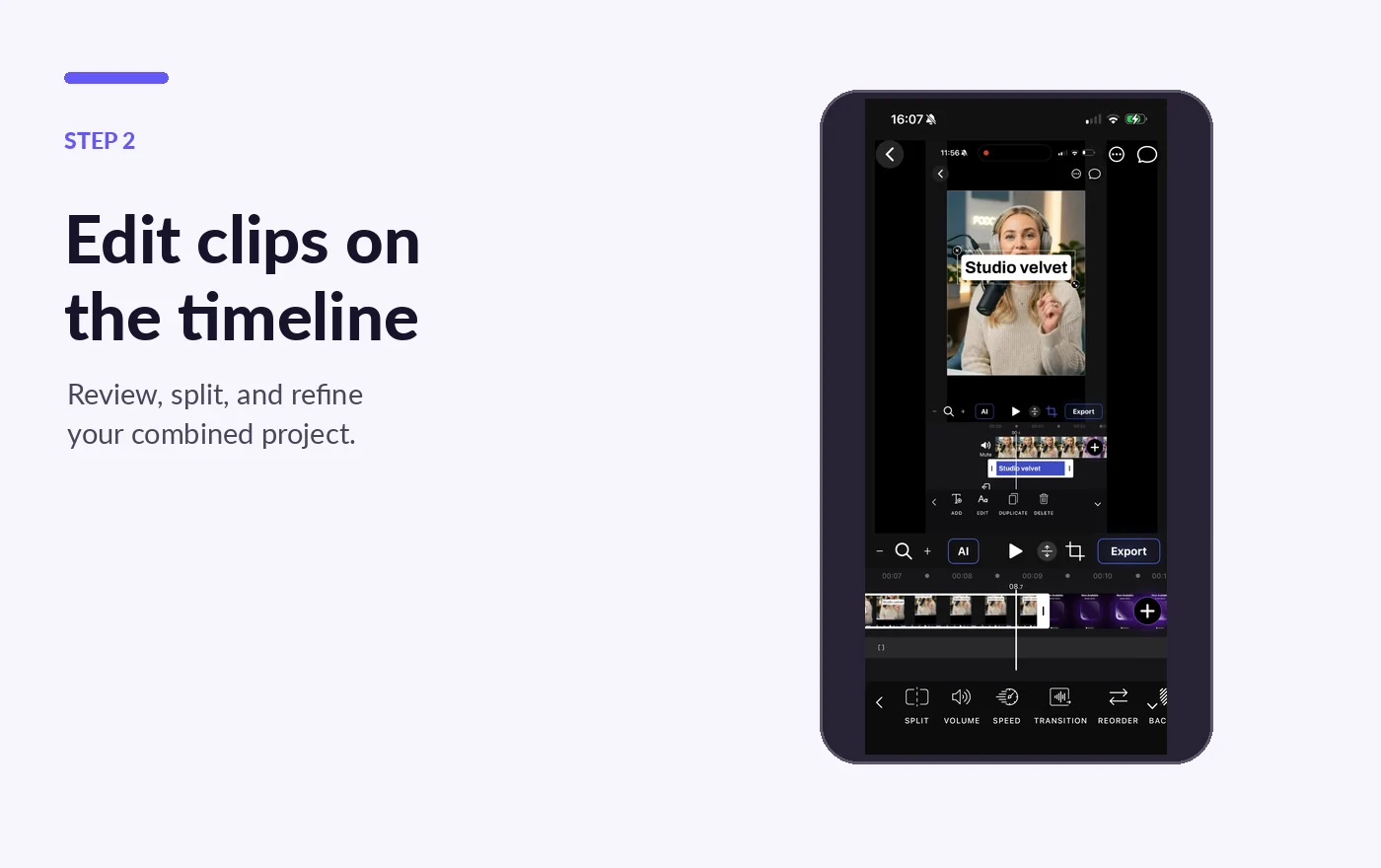
- Split videos into smaller segments: Have a clip that contains more footage than you need? Use Split to divide it into separate segments and focus on the moments that matter most.
- Adjust the pacing: Speed controls let you change the playback speed of your clips — slow down an important moment or speed up a section that doesn't need as much screen time.
- Add transitions between scenes: Refine how one scene connects to the next, whether you're working on a fast-paced social edit or a more relaxed video.
- Adjust audio levels: Different recordings may have different audio levels. Volume controls help make your combined video feel more consistent.
Small refinements like these can make a noticeable difference in the final result.
Export Multiple Clips as One Video
Once your clips are arranged and your edits are complete, it's time to turn everything into one video file.
Tap Export, choose your preferred settings, and generate your finished video. Depending on your needs, you can choose:
- Video format: MP4 or MOV.
- Resolution: 480p, 720p, 1080p, or Original.
- Compression: Select the level that best fits your preferred file size and quality.
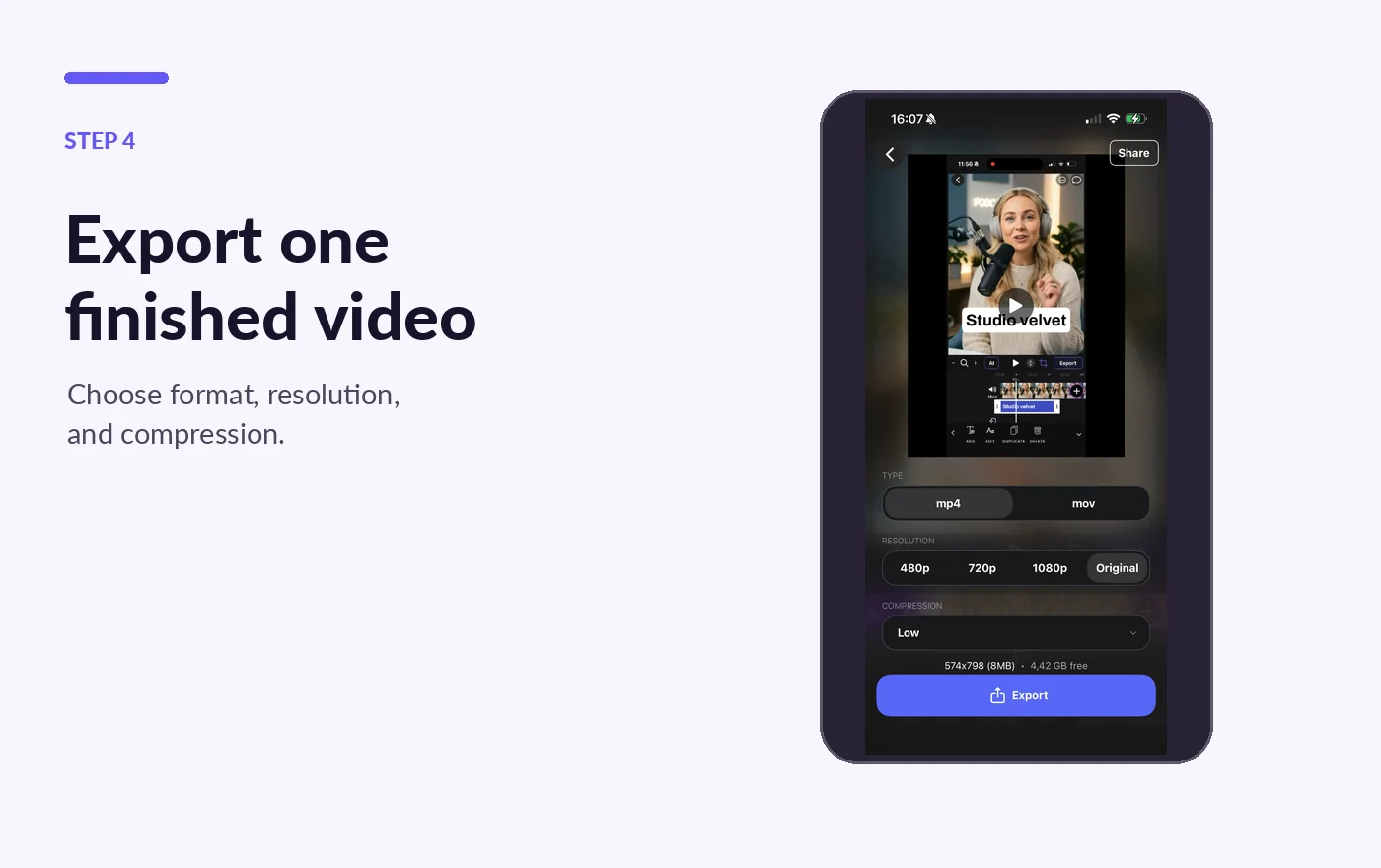
When the export is complete, your separate clips become one continuous video, ready to save or share.
One project. Multiple clips. One finished video.
Why Combine Videos Directly on Your iPhone?
Mobile video editing has become an essential part of how creators produce content.
Whether you're recording a quick social media update or putting together a more detailed project, being able to edit on the same device makes the process much more convenient.
Combining videos directly in Velvet means you can go from recording to editing and exporting without moving your footage to another device.
You can work on your content wherever inspiration strikes, make adjustments as your ideas develop, and keep everything organized in one editing workspace.
For creators producing short-form videos regularly, this flexibility can make the entire process feel more natural.
A Simple Workflow for Better Video Stories
The best video editing workflow is one that lets you focus on your ideas rather than the tools. With Velvet, combining multiple videos follows a simple process:
Step 1: Add your clips.
Import the videos you want to include in your project.
Step 2: Arrange your scenes.
Use Reorder to place the clips in the sequence that works best for your story.
Step 3: Refine your edits.
Split clips, adjust speed and volume, and add transitions where needed.
Step 4: Preview your video.
Watch how the scenes connect and make any final adjustments.
Step 5: Export and share.
Choose your preferred export settings and create one finished video.
The process is simple enough for quick edits, while still giving you the flexibility to create something more detailed.
Create More with Velvet
Great videos often start as a collection of small moments.
A few recordings from a trip. Several takes from a podcast. Different scenes from a product demonstration. Individual clips that become more powerful when brought together.
With Velvet, turning those clips into a complete video is easy. Import your footage, organize your scenes, refine the details, and export everything as one video — all from your iPhone.
Whether you're creating content for social media, sharing personal memories, or producing professional-looking videos, Velvet helps you bring your ideas together.
Combine your clips. Shape your story. Create something great with Velvet.