More Space Where You Need It: Introducing Adjustable Video Preview in Velvet
A smarter, more flexible video editing workspace — designed to adapt to the way you create.
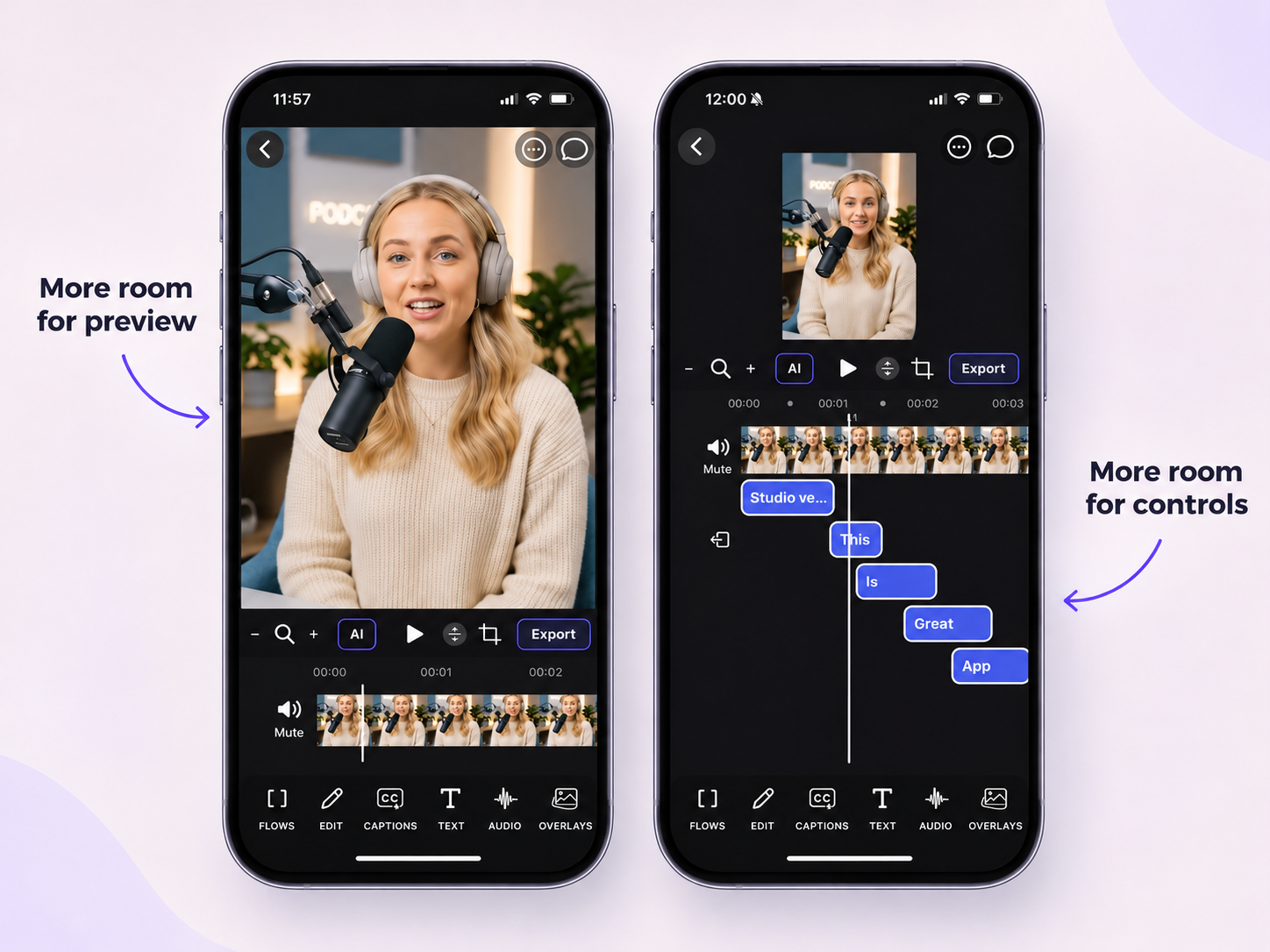
When editing videos on your phone, every pixel of screen space matters. Sometimes you need a larger preview to position text, adjust overlays, or fine-tune visual elements. Other times, you need more room for your timeline, captions, and editing controls.
With Velvet's new Adjustable Video Preview, you no longer have to choose one fixed layout.
You can easily resize your video preview and editing workspace, giving more space to whichever part of your project needs your attention.
It's a simple improvement that makes mobile video editing more comfortable, precise, and flexible.
Your Workspace, Your Way
Traditional mobile video editors often divide the screen into fixed sections: a video preview at the top and editing controls underneath.
While this works for basic editing, it can become limiting when working on more complex projects.
Imagine you're editing a short-form video with multiple captions, text animations, and overlays. You need enough room to navigate your timeline and manage individual elements.
But when it's time to precisely position a caption or adjust a visual element, that same timeline takes up valuable preview space.
Velvet solves this with an adjustable editing layout.
Instead of forcing you to work within a fixed interface, Velvet lets you change the balance between the video preview and editing controls based on what you're doing.
Expand the Preview for Precise Visual Editing
Some editing tasks require a closer look at your video.
Whether you're positioning text, adjusting overlays, or refining your composition, having a larger preview makes a real difference.
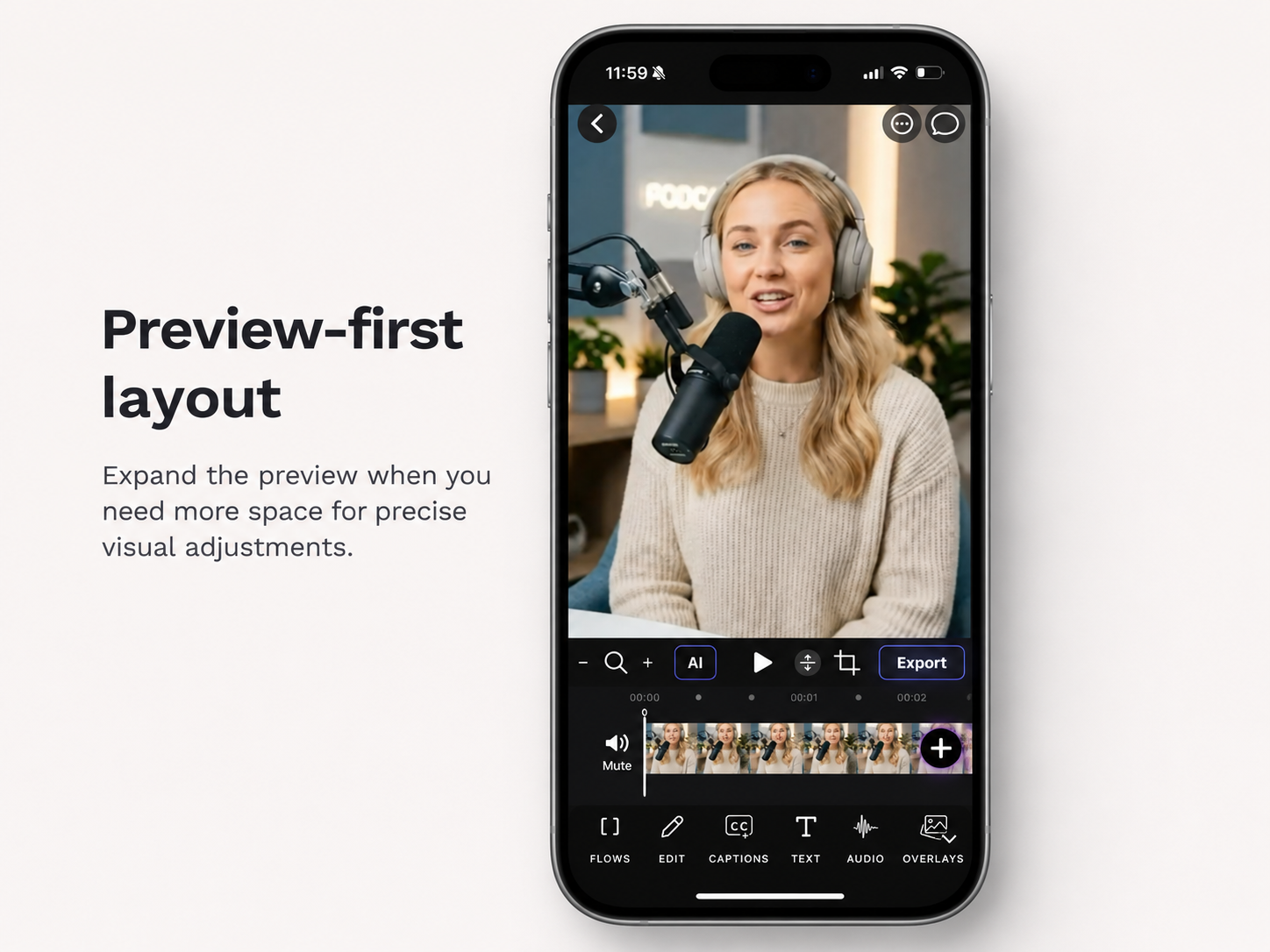
With Velvet, you can expand the preview area to give your video more screen space.
This is especially useful when:
- Positioning text and captions: Place text more precisely within the frame.
- Adjusting overlays: Fine-tune the size and placement of visual elements.
- Refining video composition: Take a closer look at framing and alignment.
- Previewing your edits: Focus on how your video looks without giving unnecessary space to the timeline.
A larger preview helps you concentrate on the visual details that matter.
And when you're ready to return to timeline editing, you can simply resize your workspace again.
Shrink the Preview to Get More Room for Editing Controls
Visual adjustments are only one part of video editing.
When you're managing multiple captions, text elements, and other timeline-based content, having more space for your editing controls can make the process significantly easier.
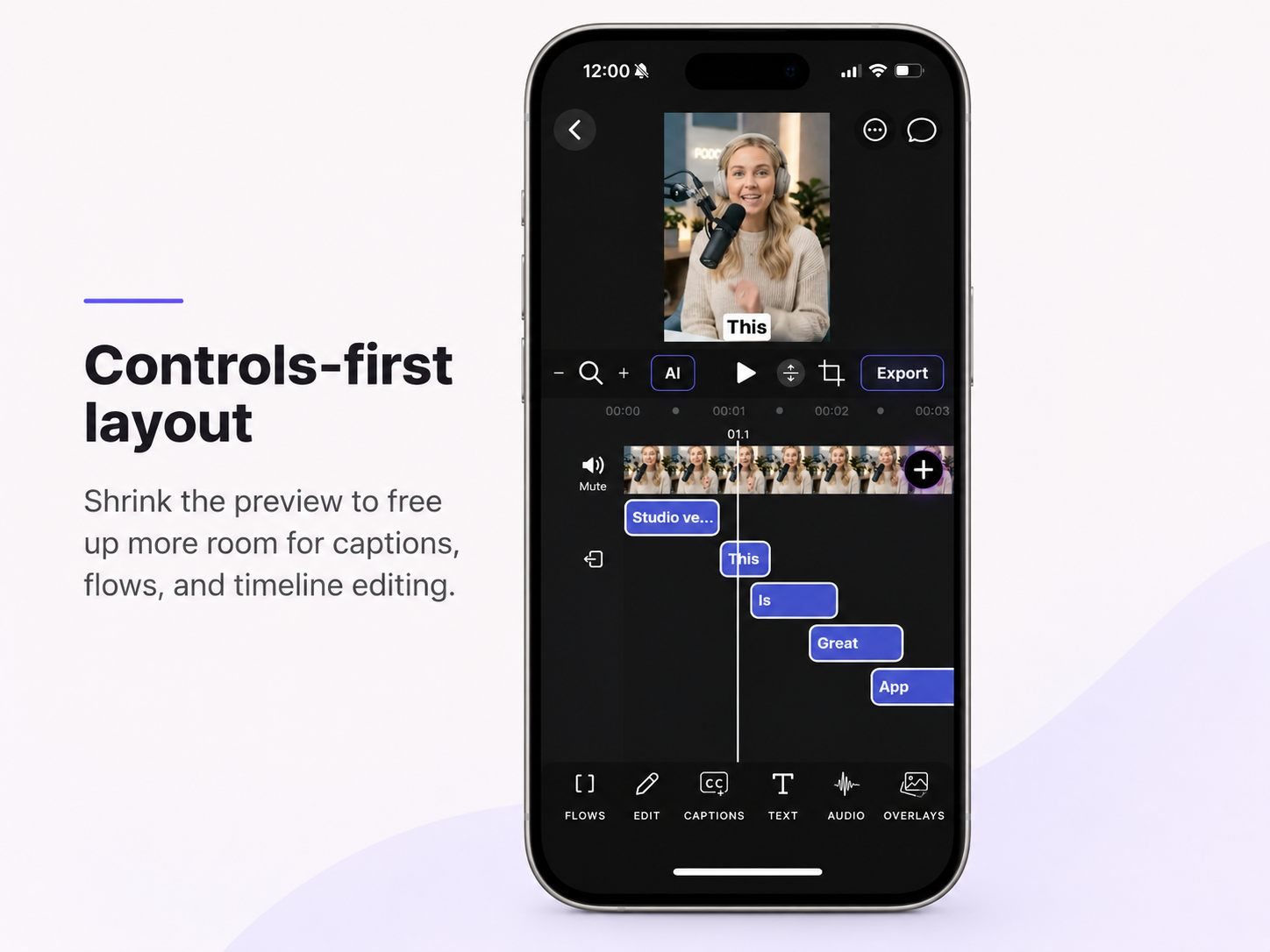
Velvet lets you reduce the preview size to expand the workspace below it.
This gives you more room to:
- Manage captions: Work with multiple caption elements across your timeline.
- Edit text timing: Navigate and adjust text elements more comfortably.
- Organize flows: See more of your editing structure at once.
- Navigate your timeline: Work with video segments and editing elements without the preview dominating your screen.
- Handle complex edits: Make adjustments when your project contains multiple layers of content.
Instead of constantly working within a cramped timeline, you can dedicate more of your screen to the editing process.
The result is a more practical workspace for detailed video editing on your iPhone.
Switch Between Preview and Timeline Editing as You Work
The real advantage isn't simply having a larger preview or a larger timeline.
It's being able to switch between them as your editing needs change.
Consider a typical short-form video editing workflow:
Step 1: Build your video.
Start with a smaller preview and more space for your timeline. Add captions, arrange text elements, and organize your editing flow.
Step 2: Fine-tune the visuals.
Expand the preview when you need to position captions, adjust overlays, or check your video composition more closely.
Step 3: Refine the timing.
Reduce the preview again to give yourself more room for precise timeline adjustments.
Step 4: Review the result.
Expand the preview to focus on your finished video and inspect the visual details.
Your workspace adapts to the task, rather than making you adapt to a fixed workspace.
Designed for Short-Form Video Creators
Mobile video editing has evolved far beyond simply trimming clips.
Creators are building sophisticated content directly on their phones, including:
- Instagram Reels
- TikTok videos
- YouTube Shorts
- Podcast clips
- Social media promotions
- Educational and tutorial videos
These projects often combine captions, text, audio, visual effects, and multiple editing elements.
As projects become more detailed, the ability to manage screen space becomes increasingly important.
Velvet's adjustable preview helps make the editing experience more flexible without introducing unnecessary complexity.
Whether you're working on a simple social media clip or a caption-heavy video, you can give yourself the space you need for each stage of editing.
Small Interface Changes, Better Editing Experience
A great mobile video editor isn't just about the number of features it offers.
It's also about how easily creators can use those features.
At Velvet, we believe that powerful editing tools should feel natural and accessible, even on a smaller screen.
The new Adjustable Video Preview is part of that approach.
By allowing you to control how your editing workspace is organized, Velvet helps you spend less effort navigating the interface and more attention creating your content.
More room for the preview when precision matters. More room for controls when editing gets complex.
One workspace that adapts to you.
Try the Adjustable Video Preview in Velvet
The Adjustable Video Preview is now available in Velvet.
Open your video project, adjust the space between your preview and editing controls, and discover a more flexible way to edit videos on your iPhone.
Whether you're positioning captions, refining visual elements, or working with a detailed timeline, Velvet gives you the freedom to focus on what matters most.
Create with more space. Edit with more precision. Make it your own with Velvet.