How to Change Video Aspect Ratio on iPhone with Velvet
One video, multiple formats. Resize, reframe, and customize your canvas for any platform — right on your iPhone.
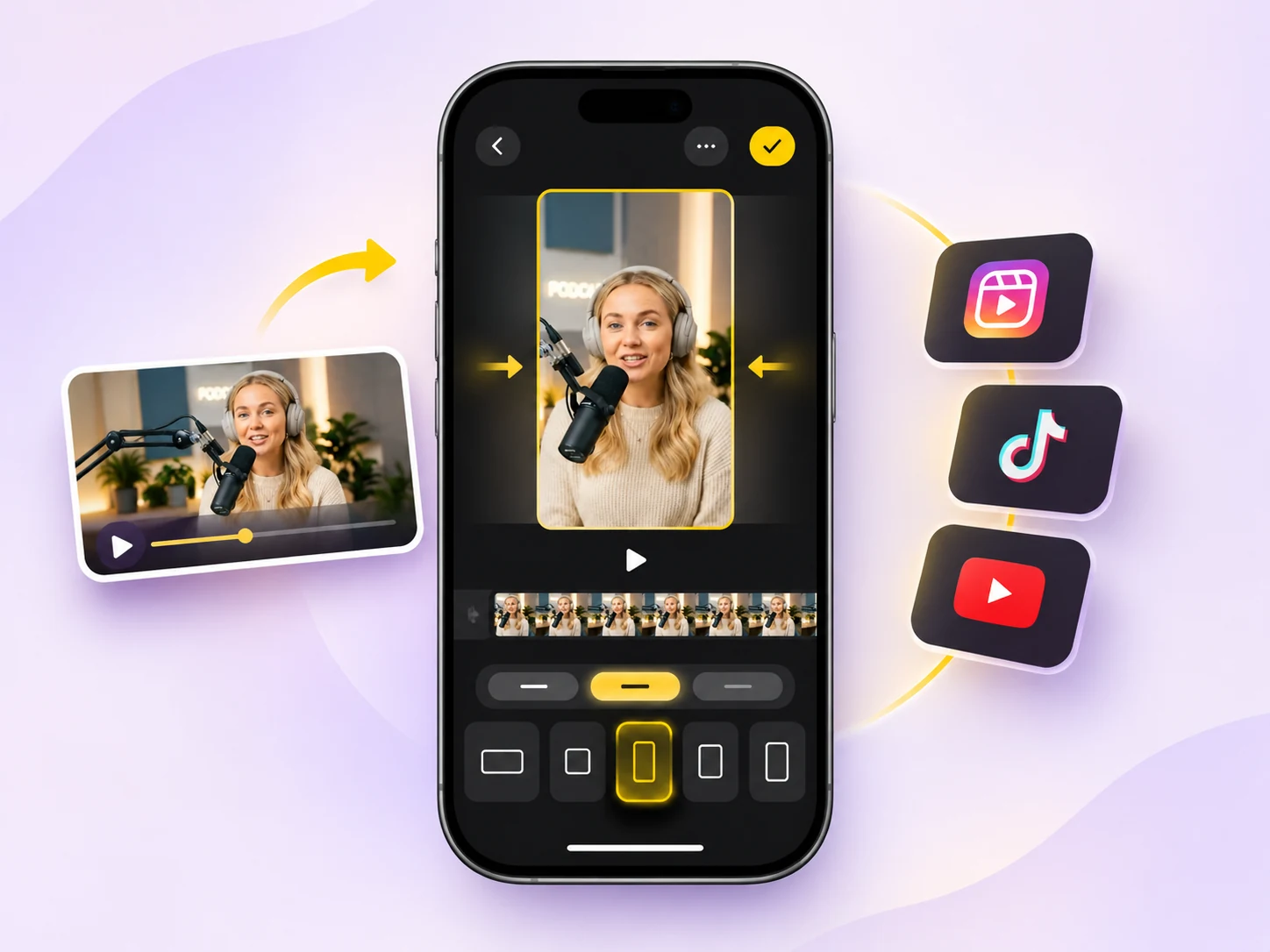
Different platforms call for different video shapes. A clip that looks great on YouTube might need a vertical frame for Instagram Reels or a square layout for a feed post.
With Velvet, you can change your video's output format without starting a new project.
1. Choose Your Video Format
Open your project and tap the crop icon next to Export.
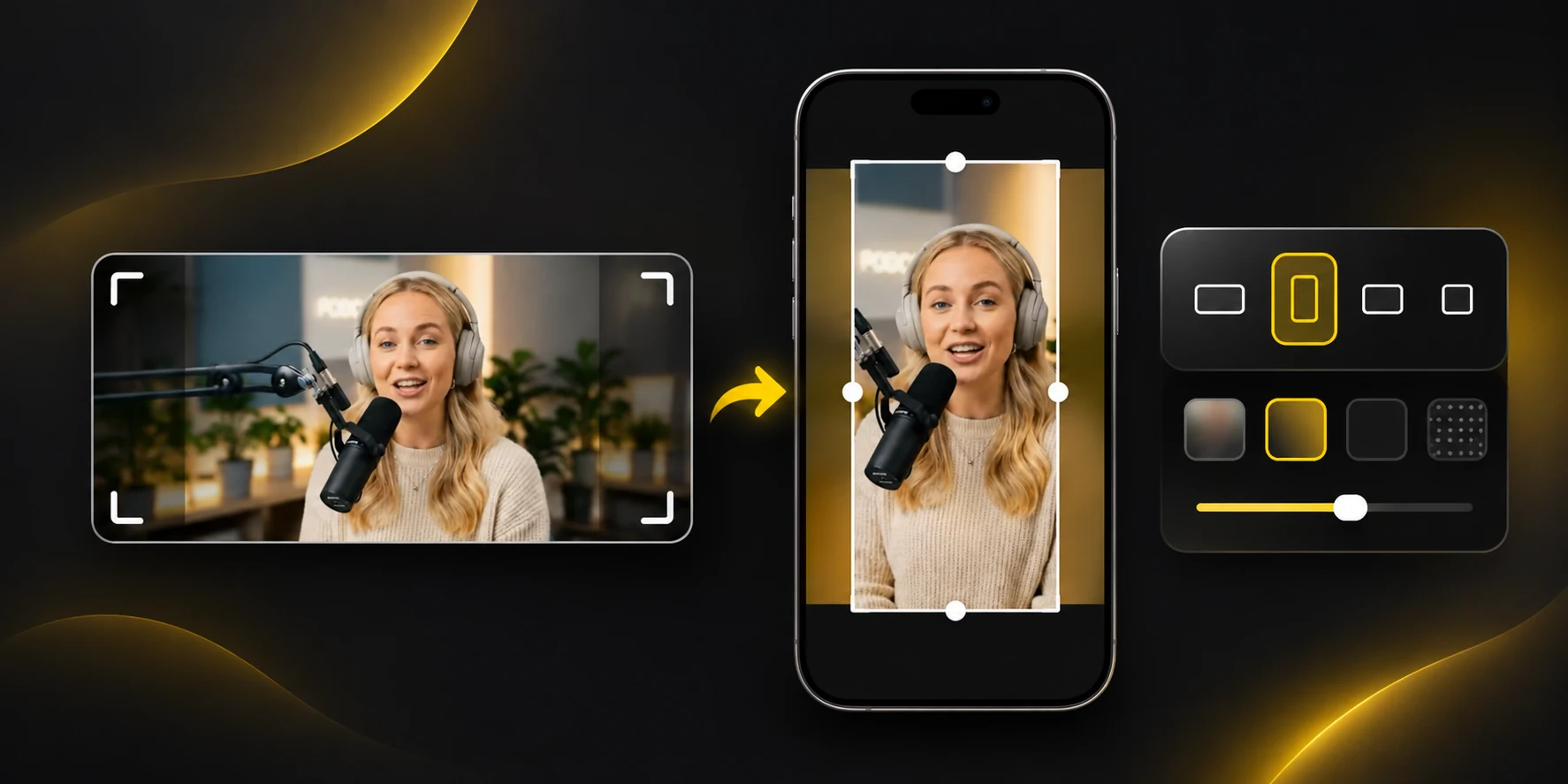
In Ratio, choose a format that fits where you plan to share:
- 9:16 — Instagram Reels, TikTok, and other vertical videos
- 1:1 or 4:5 — Instagram feed posts
- 16:9 — landscape YouTube videos
- Full frame — keep the project's original aspect ratio
You can also choose classic, cinematic, and other aspect ratios. The preview immediately shows how your final frame will look.
2. Fine-Tune the Frame
Switch to Adjust to control how each video scene fits the new canvas.
Choose Fit to show the entire clip with space around it, or Fill to cover the frame by cropping its edges.
Pinch to zoom, drag to reposition, or rotate and flip your video as needed.
Adjustments can be made per video scene, so each clip can have its own framing.
3. Make the Background Your Own
When your video doesn't fill the selected frame, open Background and choose from:
- Blur — a blurred version of your video
- Color — solid colors or a custom shade
- Gradient — smooth color transitions
- Pattern — dots, grids, lines, and more
Apply your background across the project or customize individual scenes.
Tap Done to save your changes. Then select Export, choose MP4 or MOV, and set your preferred resolution and compression.
Velvet renders your video in the selected aspect ratio, ready to share.
One Video, Ready for Every Platform
From portrait social clips to widescreen videos, Velvet makes it easy to adapt your content without rebuilding your edit.
Choose the frame. Perfect the composition. Export your way.